
AI video transition prompts work when they describe a handoff, not a mood. Give the model a readable starting frame, one bridge action, a readable ending frame, and enough stable footage on both sides to cut. The phrase “smooth transition” supplies none of those decisions.
Use generation for transitions that require new intermediate frames: a morph, a camera move through an object, a foreground wipe, a match-on-action, or a whip pan that changes location during the blur. Put hard cuts, standard dissolves, fades, speed ramps, and exact beat timing in the editor. Those operations are predictable in post and do not need the model to invent anything between two finished clips.
Open C Dance, start in the image-to-video Workspace with Seedance 2.5 selected, and keep the Seedance prompt library nearby for owned motion examples. During testing, hold the model, mode, aspect ratio, and reference image fixed. Change only the transition instruction you are trying to repair.
The quick answer: prompt the bridge, edit the cut
A useful transition prompt has five parts:
- Start anchor: what the viewer can identify in the opening frame.
- Shared bridge: the shape, motion, texture, or foreground object that connects both states.
- Camera path: one direction and one speed.
- End anchor: what must be readable after the change.
- Edit handle: a short hold or completed motion before the clip ends.
Write those parts in order. Style comes later.
Start: close view of a red ceramic bowl centered on a dark table
Bridge: the circular rim rotates clockwise and expands until it fills the frame
Camera: slow push forward on the same axis, no orbit
End: the circle resolves into a red desert sun above a black ridge
Handle: hold the finished desert composition for one second
Continuity: preserve the red-black palette and clockwise motion; no text, extra objects, or hidden cut
This prompt gives the model a path. “A bowl smoothly transitions into a sunset” gives it two nouns and leaves every frame between them unresolved.
Decide whether the transition belongs in generation
Before writing a prompt, ask whether the transition needs the model to render intermediate visual information.
| Transition | Generate or edit? | Reason |
|---|---|---|
| Hard cut | Edit | No intermediate frames are needed |
| Cross-dissolve | Edit | An editor can blend two finished clips precisely |
| Fade to black | Edit | Timing and opacity are deterministic in post |
| Speed ramp | Edit | It changes playback timing, not scene content |
| Object morph | Generate | The object must change across new frames |
| Push through a portal or surface | Generate | The camera path reveals a new scene |
| Foreground wipe | Usually generate | An object must cross the frame and conceal the handoff |
| Whip pan to a new location | Generate the bridge, trim in edit | Motion blur and direction connect both spaces |
| Match cut | Generate or edit | Generate when the shape changes continuously; edit when two finished frames already match |
This boundary saves credits. A model may turn “cross-dissolve to the next room” into melting walls because it interprets the request as scene generation. Two clips plus a short dissolve in an editor will be cleaner. Reserve generation for the parts the editor cannot create from existing frames.
Build an anchor pair before writing prose
Most failed AI video transitions begin with incompatible states. The first image may be a wide daylight street while the desired ending is a macro night shot of an unrelated object. The model then needs to solve subject identity, scale, light, camera, location, and geometry at once.
Reduce that distance. Put the two states into a small anchor sheet:
| Variable | Opening state | Ending state | Bridge rule |
|---|---|---|---|
| Dominant shape | circle | circle | keep centered and expanding |
| Motion | clockwise rotation | clockwise rotation | never reverse direction |
| Palette | red and black | red and black | keep color masses stable |
| Camera | close, eye level | close, eye level | push forward only |
| Subject | ceramic rim | sun disk | change material after the circle fills frame |
If the table has no plausible bridge rule, redesign the transition. A different ending frame, a foreground wipe, or a cut in post may solve the edit with less risk.
The same planning discipline appears in the AI video B-roll prompt workflow: every generated clip needs one job and a usable endpoint. Here, the job is narrower. One visual state must hand control to another without losing the viewer.
Write a morph transition around shared geometry
Morphs hold together when the two subjects share a silhouette, center point, texture flow, or motion axis. A round watch face can become a moon. Folded cloth can become a sand dune. A glass bottle can become a tower if their outlines line up. Two unrelated scenes with different composition have no stable bridge.
Use one intermediate behavior. “Liquefies, explodes into particles, becomes smoke, then crystallizes” asks for four effects and gives none enough time.
Extreme close-up of a silver mechanical watch, centered and filling most of the frame.
The second hand rotates clockwise. The black dial gradually deepens into a night sky while the silver bezel keeps its exact circular outline.
The hour markers become small stars, then the center resolves into a bright full moon inside the same circle.
Slow forward camera move, no rotation, no cut, no extra objects.
Keep the watch-to-moon change continuous and hold the completed moon for one second.
The fixed bezel is the control surface. The dial changes, but the viewer never loses the circle. If faces, logos, or exact products matter, use an owned reference image and keep the transformation away from the identity-critical area until late in the shot.
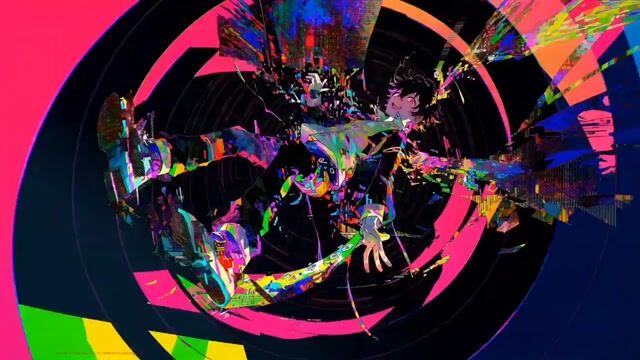
The image above is a first-party C Dance prompt-library frame. It is evidence of the visual design principle, not a claim that the same words reproduce the same output on every model version.
Make a match cut preserve one visible property
A match cut works because the outgoing and incoming images agree on something the eye can track. Match the circle, screen position, movement direction, subject scale, or pose. Do not try to match everything.
Opening: overhead shot of a barista's right hand stirring coffee clockwise in a white cup centered in frame.
At the fastest point of the circular motion, the cup remains in the same screen position and becomes an aerial view of a small white boat turning clockwise on dark blue water.
Maintain the circular path, scale, and overhead camera angle through the handoff.
No dissolve, no camera tilt, no second hand, no text.
End with the boat completing half a circle and hold the wide water composition.
The cut has one promise: the rotating circle stays readable. The subject change is easier to accept because the viewer is following motion rather than inspecting every object detail.
When you already have two finished clips with matching composition, make the cut in the editor. Generate the match only when the visual property must transform across frames.
Use a whip pan as a directional bridge
A whip pan is useful when two locations share camera direction but not content. The fast movement creates a brief blur window where the handoff can occur. Direction is the continuity anchor. A left-to-right pan that returns right-to-left will feel like a mistake unless the reversal is part of the design.
Start in a quiet bakery at counter height. A baker places one loaf on a wooden board.
The camera suddenly whip-pans from left to right. The frame becomes full horizontal motion blur for a brief moment.
During the blur, change the location to an outdoor morning market while keeping the same camera height and warm light direction.
The pan decelerates and lands on a vendor placing the same-shaped loaf on a market table.
No zoom, no orbit, no backward pan. Hold the market frame after the camera settles.
Do not ask for a whip pan, zoom, orbit, crane, and subject transformation in the same beat. One camera bridge is enough. Add sound and exact beat timing in post, where you can place the whoosh on the actual blur peak.
Hide the handoff behind foreground occlusion
Foreground occlusion is often more forgiving than a free-air morph. A person, door, column, vehicle, cloth, or dark surface crosses the entire frame. The scene changes while the camera cannot see it.
Camera tracks beside a cyclist moving left to right on a city street at dusk.
A dark bus passes very close to the lens from right to left until it completely covers the frame.
While the frame is fully covered, change the background from the city street to a coastal road at sunrise.
The bus clears in the same direction and reveals the same cyclist, same jacket, same bicycle, and same screen position.
Continue tracking for two seconds, then hold a steady side view.
The concealment must cover the whole frame. A narrow pole cannot hide a large scene change. If the model reveals part of both locations at once, enlarge the foreground object, move it closer to the lens, or shorten the hidden interval.
Prompt a push-through transition with one surface
Push-through transitions carry the camera through a window, eye, screen, tunnel, reflection, or textured surface. They fail when the prompt treats the surface as a loose metaphor instead of a physical threshold.
Begin with a medium shot of a rain-covered train window at night.
The camera pushes straight toward one large raindrop near the center of the glass.
As the raindrop fills the frame, its reflected city lights become a field of bioluminescent plants.
Continue forward through the reflection into the new forest at the same speed and on the same axis.
No side movement, no cut, no extra window, no text.
End on a stable wide forest view with the camera stopped.
Name the physical entry point and keep it centered. “Travel through memory into another world” sounds evocative but gives the model no surface, scale, or direction.
Keep product transformations measurable
Product transitions are attractive because they can show material, color, or assembly changes in one shot. They are also easy to ruin. Exact labels, small text, logos, edges, and mechanical parts may warp while the product changes.
Separate the identity anchor from the changing property.
Locked three-quarter product shot of one unbranded white running shoe on a gray pedestal.
Keep the sole outline, laces, camera angle, pedestal, and soft light fixed.
Only the upper material changes: white woven fabric gradually becomes translucent blue glass, moving from heel to toe as one clean wave.
No rotation, no extra shoe, no logo, no text, no change to the sole.
After the glass reaches the toe, hold the finished shoe for one second.
If the commercial requires exact packaging or copy, generate the motion without text and add the verified label in post. The one-image product video workflow covers the broader shot plan around that asset.
Give every transition clean entry and exit handles
A transition can look impressive and still be useless in an edit. Editors need a stable moment before the bridge and another after it. Without those handles, the clip begins halfway through motion or ends before the new state becomes readable.
Use timing as a sequence of jobs rather than an unsupported frame-perfect promise:
Beat 1: hold the opening composition briefly; subject is still readable
Beat 2: begin one controlled camera or material movement
Beat 3: complete the visual handoff without introducing a second action
Beat 4: settle the camera and hold the final composition
The generated duration may not match the written seconds precisely. Judge the actual footage. Trim the stable frames, place the cut, and add music or sound effects after the image works.
Review a first-party transition example
The frame below has a clear subject, readable action, fixed camera height, and several strong geometric anchors. Those anchors give the transition somewhere to begin. A vague prompt would still fail, but the opening state itself is legible.
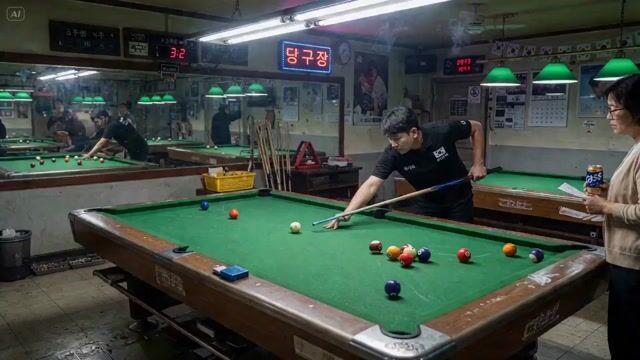
This site-owned clip is 1280 by 720 and about 15 seconds long. It is included so you can inspect entry, motion bridge, settling behavior, and edit handles. It is not a controlled benchmark and does not promise identical results from a copied prompt.
Test one variable at a time
Changing the prompt, model, reference image, duration, aspect ratio, and camera direction together makes the result impossible to diagnose. Keep a small test log.
| Run | Keep fixed | Change | Review question |
|---|---|---|---|
| A | model, image, format, anchors | baseline bridge | Is the start and end readable? |
| B | everything from A | simplify camera path | Did the hidden cut disappear? |
| C | everything from B | strengthen shared shape | Does the morph hold geometry? |
| D | everything from C | add final hold | Is there a usable exit frame? |
Write a replacement note after each run:
Transition T04: coffee cup to boat
Useful: centered circle and clockwise motion stay readable
Failure: water appears before the cup leaves, creating a double exposure
Keep fixed: overhead angle, circle scale, clockwise direction, palette
Change: delay the subject change until the cup rim fills the center; prohibit dissolve and overlapping scenes
This turns a failed generation into a specific next test. “Make it smoother and more cinematic” would hide the diagnosis.
Repair transition failures by symptom
The middle melts into an unrecognizable image
The two states are too far apart or the prompt stacks several effects. Choose one shared silhouette, texture, or motion. Remove every transformation except the one that carries the handoff.
The model inserts a random cut
Add a physical bridge. Fill the frame with motion blur, a foreground object, darkness, a reflection, or a shared shape. Keep camera direction and speed consistent. If you wanted a hard cut anyway, make it in post.
Both scenes appear at the same time
The prompt likely uses dissolve language or changes the scene before the cover is complete. State when the outgoing state stops and when the incoming state begins. Add “no double exposure, no split screen, no overlapping locations.”
The subject changes identity
Use image-to-video, keep the identity anchor outside the main transformation, and repeat only the stable features that matter. Do not transform face, clothing, product geometry, background, and camera in the same beat.
The camera reverses direction
Repeat the screen direction in the start, bridge, and end. Remove conflicting verbs such as “circles,” “swings,” or “reveals from behind” when you need a straight left-to-right move.
The transition completes too late
Reduce the setup action, shorten the visual distance between states, and ask the final composition to settle before the end. Do not solve timing by adding more movement.
Text and logos deform
Treat exact typography as an edit-layer job. Generate an unbranded surface or a clean placeholder, then composite the verified text or logo onto the stable frame.
Choose text-to-video or image-to-video per transition
Use image-to-video when the opening composition, person, product, location, or palette must be recognizable. The image supplies a hard first anchor. The prompt should then focus on motion and the handoff instead of redescribing the entire picture.
Text-to-video gives more freedom when exact identity matters less, such as an abstract material morph or a generic camera push through a cloud. That freedom also lets the model reinterpret the opening state.
C Dance currently exposes both modes and several video model choices. Keep the first comparison narrow. Test Seedance 2.5 in image-to-video mode, then compare Kling 3 with the same mode and reference only after the transition contract is stable. A model comparison is useful when the input is controlled.
Know the limits before spending more credits
No prompt template guarantees a clean transition. Results can change with the model version, provider implementation, reference image, clip duration, moderation policy, and random seed when one is exposed.
Some requests remain poor generation targets:
- an exact corporate logo changing shape while staying pixel-perfect;
- several faces swapping identity during a fast camera move;
- readable paragraphs of text inside a morph;
- many scene changes packed into a short clip;
- physically unrelated states with no shared geometry or occlusion;
- frame-perfect music timing without an editing pass.
When a transition keeps failing after two controlled revisions, simplify the bridge or split the job into two clips. Production quality often comes from a modest generated motion plus a precise edit, not from forcing one generation to solve the whole sequence.
Final checklist for AI video transition prompts
Before generating, confirm that:
- the transition needs generated intermediate frames;
- the opening and ending states are written separately;
- one shape, motion, texture, or foreground object connects them;
- the camera has one direction and one speed change at most;
- identity, light direction, palette, and aspect ratio are locked where needed;
- the prompt asks for one transition rather than a chain of effects;
- the outgoing scene disappears before the incoming scene becomes fully visible;
- the final composition settles and holds;
- exact text, logos, dissolves, and beat timing stay in the editor;
- the next test changes one diagnosed variable.
Return to C Dance, open the image-to-video Workspace with Seedance 2.5 selected, and test one anchor pair. Use the Seedance prompt guide when the base shot is still unstable, or the B-roll workflow when the transition must fit a larger edit. A good handoff gives the eye one thing to follow and gives the editor somewhere clean to cut.
When the ending should return to the opening instead of revealing a new scene, use the AI video loop prompt workflow to match both frame state and motion phase.